
How to delete temporary files and free up space



Temporary files accumulate from applications, browsers, system updates, and the operating system itself. While most are intended to be short-lived, many persist unnecessarily, consuming storage space.
This guide explains temporary files, highlights which ones are safe to remove, and provides step-by-step instructions for clearing them on Windows and macOS. We also cover troubleshooting and best practices for ongoing maintenance.
Understanding temporary files and their impact
Temporary files are stored in dedicated system and application directories to avoid cluttering your main folders or documents. Common file locations include:
| OS | Location | Scope | Description |
| Windows | %TEMP% | User-specific | User and application temporary files. Typically located at C:\Users\YourName\AppData\Local\Temp |
| Windows | C:\Windows\Temp | System-wide | Windows and system process temporary files |
| macOS | /tmp | System-wide | Short-lived temporary files; periodically cleared on reboot or by system maintenance |
| macOS | ~/Library/Caches | User-specific | Application caches; generally safe to delete, as apps regenerate required data |
| macOS | /private/var/tmp | System-wide | Longer-lived temporary files; cleared less frequently |
Operating systems prioritize performance, so cleanup may be delayed to avoid disrupting active processes or to retain reusable cached data. As a result, files can accumulate after crashes, improper shutdowns, or inadequate app cleanup.
Some folders, especially on Windows, also aren’t automatically cleared on reboot.
Types of temporary files
Temporary files are generated for different purposes during normal system and application activity; the categories below group them by function and behavior:
- Application temporary files: Short-term scratch data created during use (e.g., Office auto-recovery drafts).
- Cache files: Re-creatable data stored to improve performance (e.g., browser page thumbnails and locally saved web content).
- Browser temporary files: A subset of cache files holding web elements to help pages load faster on repeat visits (e.g., images).
- Update and delivery cache files: Downloaded installers, update packages, or patches. These often reside in Windows Update folders rather than general temp directories.
- Thumbnail cache files: Pre-generated previews of images, videos, and documents.
- Recovery and unsaved document files: Temporary versions created automatically (e.g., Office .asd files) to help recover work after interruptions.
Cache files vs. temporary files
Cache files and temporary files often overlap, but they differ in purpose, lifespan, and management.
| Cache files | Temporary files | |
| Purpose | Store reusable data for faster repeated access | Support a single task or process |
| Lifespan | Can persist long-term until cleared or expired | Often short-lived; typically deleted after the task ends |
| Persistence | Often remains across sessions | May linger if cleanup fails (e.g., crash) |
| System handling | Auto-refreshed, pruned, or validated | Often auto-deleted; may persist if cleanup fails |
| Deletion impact | Rebuilds automatically when needed | Safe once the process has finished |
Why delete temporary files?
Deleting temporary files frees up disk space and maintains system efficiency. These files typically offer limited benefit once their associated tasks end.
Beyond this, clearing these files keeps folders organized, making manual inspection and troubleshooting easier.
Clearing unnecessary files also helps ensure only meaningful data is preserved, improving backups and system snapshots.
What not to delete
Not everything in temporary directories should be removed. For example:
- Files in use: Actively used files may fail to delete or cause unexpected behavior. Close relevant programs (or restart your computer) before cleanup; the system will usually warn about active files.
- Previous Windows installations: Older Windows versions may be included in cleanup tools and are required for system rollback. Only remove them if you no longer need the option to revert.
- Downloads folder: Saved installers, documents, and media are often stored here. Review contents carefully before deleting, rather than removing in bulk.
- System-critical files: Files outside standard temp and cache directories may be required for system operation. Using built-in tools like Disk Cleanup (Windows) or Storage Management (macOS) helps avoid removing essential data.
How to delete temporary files on Windows 10 and 11
There are several methods for clearing temporary files on a Windows device.
Using the temporary files menu
This method uses the built-in Storage section in Windows Settings. It lets you manually review and remove temporary files.
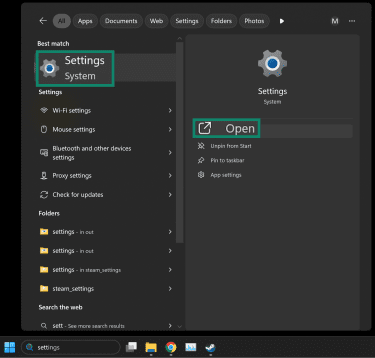
- Click Start and open Settings.
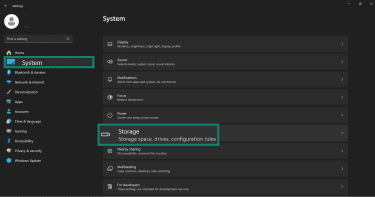
- Go to System and select Storage.
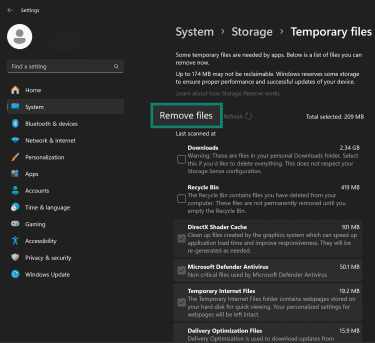
- Click Temporary files. Windows will scan and display file categories.
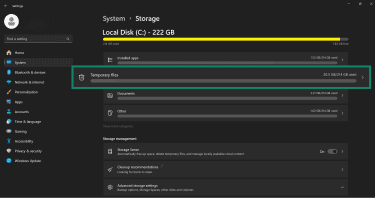
- Check the boxes for the file types you want to remove and select Remove files.
Using Storage Sense
Storage Sense automatically removes temporary files and other unnecessary data from your system drive. You can turn it on to run automatically or run it manually at any time.
- Click Start and open Settings.
- Go to System and click Storage. Turn Storage Sense on.
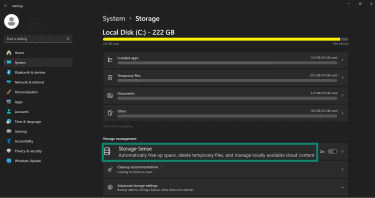
- Select Storage Sense to configure how and when it runs.
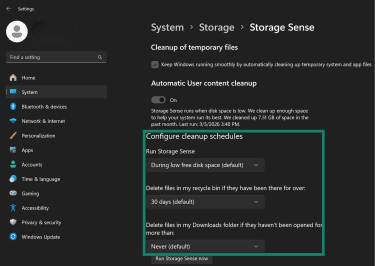
- Choose cleanup options based on your needs, and then select Run Storage Sense now to clean immediately.
Using Disk Cleanup
Disk Cleanup is a built-in Windows utility that removes unnecessary files, including temporary files.
- Type Disk Cleanup in the Start menu search box and open the app.
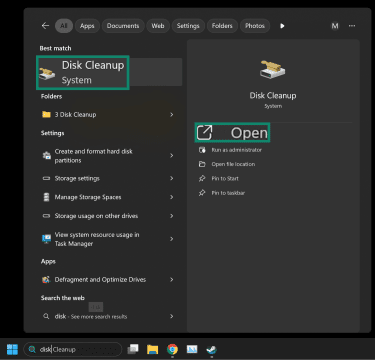
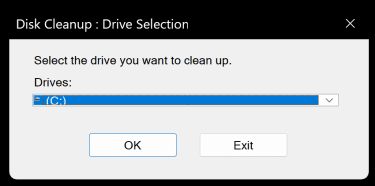
- Select the drive you want to clean (usually C:) and click OK.
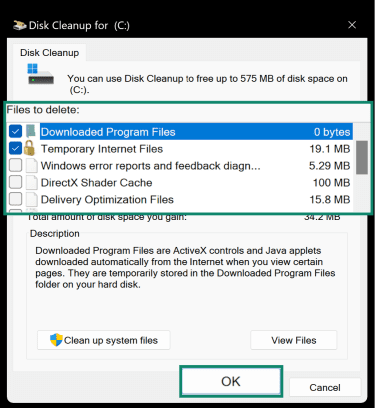
- In the list of files to delete, check the boxes next to the file types you want removed. Click OK.
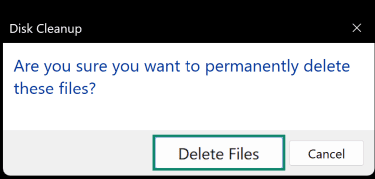
- Now select Delete Files to confirm.
Using the command prompt
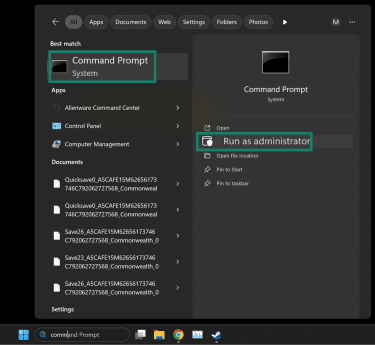
- Press Start and type Command Prompt. Click Run as administrator.
- To delete temporary files for the current user only, type del /q /f /s %TEMP%\* and press Enter.
- If you want to delete temporary files system-wide, enter del /q /f /s C:\Windows\Temp\* instead.
Delete temporary browser data
Temporary browser data includes cached files and cookies stored to help pages load faster. Clearing the cache removes stored web resources, while clearing cookies and history removes login sessions and browsing records.
This guide uses Chrome as an example; you can find the cache and cookie management options in similar places in most other browsers.
- Open Google Chrome and click the three-dot menu in the top right. Click Settings.

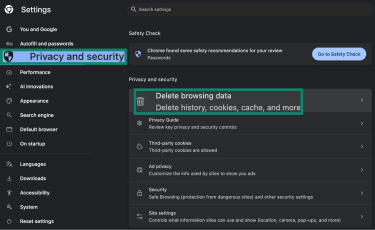
- Click Privacy and Security and Delete browsing data.
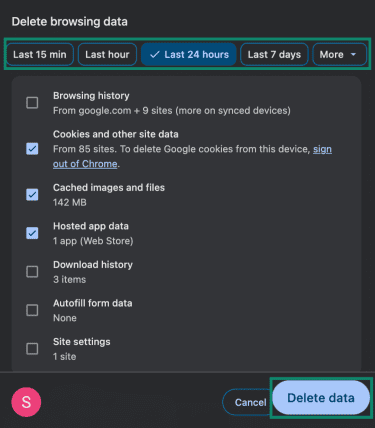
- Choose a time range, select Cached images and files and any other data types you want to remove, and then click Delete data.
- Note that selecting “Cookies and other site data” signs you out of most websites.
How to delete temporary files on Mac
As with Windows, you have several options on macOS devices.
Using Finder
- Open Finder and click Go in the menu bar.
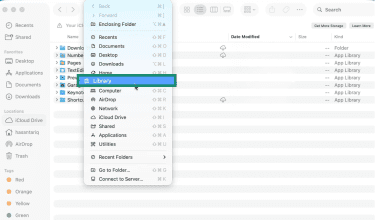
- Hold the Option key, and click Library when it appears in the menu.
- Open the Caches subfolder.
- Select the files you want to remove, and drag them to the Trash.
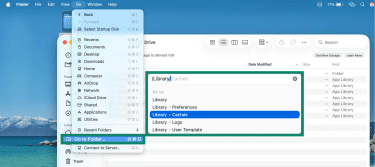
 You can also open specific locations directly. Here’s how:
- Open Finder and click Go in the menu bar, select Go to Folder…, and enter a folder path such as ~/Library/Caches.
Clear temporary Safari data
On macOS, Safari has three cleanup controls, each removing different types of temporary browser data.
Empty cache
This method removes cached web resources, such as images, scripts, and page assets.
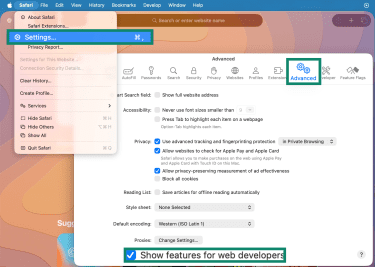
- Click Safari in the menu bar, then Settings, and navigate to the Advanced tab.
- Toggle Show features for developers on to add the Develop menu to the menu bar.
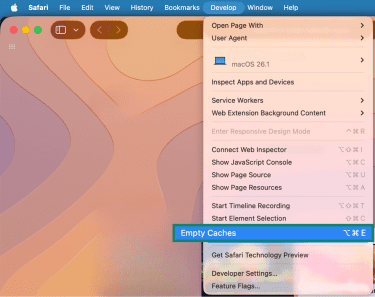
- Click Develop and then select Empty Caches.
Manage website data
This process removes cookies, local storage, website databases, and some cached site data associated with those websites.
- Open Safari, click Settings in the menu bar, and go to the Privacy tab. Click Manage Website Data…
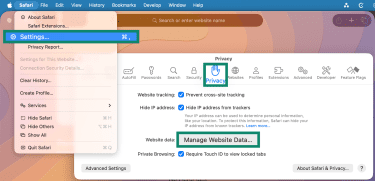
- The window that opens shows the website data that Safari has stored.
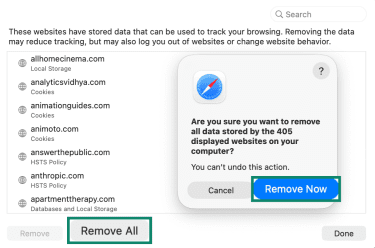
- Select the specific website data you want to remove by clicking it individually, or click Remove All to delete everything.
- Click Remove Now.
Restart and empty Trash
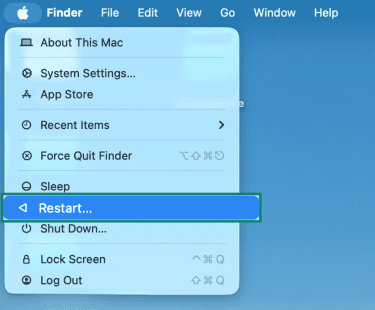
Restarting your Mac can help clear temporary system files left behind by apps or processes. Afterward, you can permanently delete files from the Trash.
- Click the Apple menu in the top-left corner of the screen and click Restart.
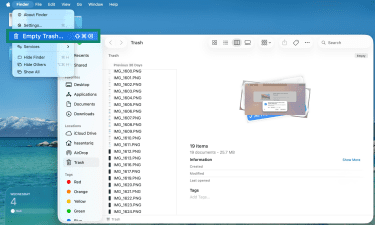
- Once your Mac restarts, open Finder and click Trash.
- Click Finder in the menu bar and select Empty Trash. You won’t be able to recover the files.
Troubleshooting temporary file cleanup
If files won’t delete or space doesn’t free up after cleanup, the checks below can help resolve the issue:
- Close related applications: Files in use by browsers, editors, or other utilities may not be deleted. Close relevant applications, wait briefly, then retry.
- Check and elevate permissions: Some temporary folders or files require administrator rights. Run the tool or Command Prompt as administrator if needed.
- Restart your computer: File locks held by background services or system processes may persist after apps are closed. Restarting releases these locks.
- Wait for storage indicators to update: Storage summaries may take time to reflect changes after deletion. Refresh or restart if this doesn’t update immediately.
Best practices for ongoing cleanup
Temporary files inevitably reaccumulate from app usage, browsing, updates, and system activity. The points below help reduce buildup and limit unnecessary storage use:
- Storage monitoring: Identify growing caches and temporary files early by using built-in tools (e.g., Settings > Storage on Windows, About This Mac > Storage on macOS).
- Unused applications: Installed software may continue to generate and store temporary files even when not in use. Removing unneeded applications reduces unnecessary storage use.
- Operating system updates: System updates often improve cache management and cleanup behavior, helping reduce the buildup of temporary files over time.
- Download and installer remnants: Installers, setup files, and downloads may remain after use, unnecessarily taking up space. Reviewing and removing unneeded items helps reduce clutter.
- System-managed locations: Some temporary and cache directories are managed by the operating system. Removing unfamiliar items may cause instability or unnecessary data regeneration.
FAQ: Common questions about deleting temporary files
How do I clear out my temporary files?
On macOS, open Finder, select Go > Go to Folder…, and enter ~/Library/Caches. Delete the files you no longer need, then empty the Trash.
You can also clear browser cache in Safari via Develop > Empty Caches.
Where are my temp files located?
Is it safe to delete temp files?
Can deleting temporary files help my computer run faster?
What happens to programs when I delete temp files?
Most applications automatically recreate any required files the next time they’re launched. The main risks are deleting files while a program is actively using them or deleting critical files.
How often should I clear temporary files to maintain system health?
Does deleting temporary files delete everything?
Explore the web with greater privacy
Get ExpressVPNSign up today for a chance to win FIFA World Cup 2026™ tickets.