How to reduce CAPTCHA prompts: Browser and VPN fixes


A search query, product lookup, or form submission might trigger an "I'm not a robot" check before you can continue. This CAPTCHA check helps websites distinguish between real visitors and automated traffic, but frequent prompts can also slow down browsing and interrupt basic tasks.
This article explains why CAPTCHA prompts appear, what commonly triggers them, and what changes to your browser or network setup can reduce how often you see them.
What is CAPTCHA?
CAPTCHA stands for “Completely Automated Public Turing test to tell Computers and Humans Apart.” Early versions asked users to type distorted text or identify objects in images. Many modern CAPTCHA systems analyze signals in the background before deciding whether to present a visible challenge.
These systems try to determine whether a request is likely coming from a person or from automated software. If the system can't confidently make that determination, it may ask the visitor to complete a verification step.
What is reCAPTCHA?
reCAPTCHA is Google's implementation of CAPTCHA and one of the most widely used versions.
reCAPTCHA v2 is the familiar "I'm not a robot" checkbox. When you click it, the system evaluates what Google describes as "a broad range of cues" to determine whether you're human.
reCAPTCHA v3 doesn’t use a checkbox challenge. Instead, it runs in the background and assigns a risk score ranging from 0.0 (likely automated) to 1.0 (likely human). Google's documentation states that the score is based on "interactions with your site" but doesn’t specify which signals are evaluated. You never see this score, but the website uses it to decide whether to let you through, ask for additional verification, or block access.
How CAPTCHA scoring works
Research on modern CAPTCHA systems indicates that behavioral signals, such as mouse movement, typing patterns, and scroll behavior, can be used to distinguish between human users and automated traffic.
That said, the same browsing behavior might trigger a CAPTCHA on one site but not another. With reCAPTCHA, each website sets its own score threshold. For example, one site might allow visitors with a score above 0.5, while another might require a score of 0.7 or higher. Scores may also not be fully accurate when a site first enables reCAPTCHA, because the system needs time to learn from real visitor activity.
Not every site uses Google's system. Some use alternatives like Cloudflare Turnstile, which runs automated checks inside the browser to confirm that the visitor appears to be a real person. These checks happen in the background, so the visitor doesn't see a puzzle.
This is why CAPTCHA experiences vary between sites, even when your browser and network setup stay the same.
Why you keep getting CAPTCHAs
CAPTCHA prompts don't appear randomly. They're triggered by specific signals that suggest a visitor might be automated rather than coming from a real person. These signals typically fall into these categories: browsing behavior, IP address reputation, and network type.
Browsing behaviors that trigger CAPTCHAs
Some browsing patterns resemble automated activity, even when a real person is behind them. Examples include:
- Submit several search queries or forms within seconds.
- Refreshing the same page repeatedly in a short period.
- Opening many tabs to the same site at once.
What matters most is the volume and timing of requests from a single session. A burst of many requests in a short time window can resemble automated scraping, regardless of intent.
IP reputation and shared networks
Websites and security services evaluate incoming traffic using a range of signals, including the reputation of the visitor's IP address.
IP reputation reflects whether an address has previously been associated with spam, automated requests, or unusually high traffic volumes. If an IP address is linked to that kind of activity, the site or its security provider may require a CAPTCHA before granting access.
Shared networks make this more likely. On public Wi-Fi, university connections, or office networks, many people connect through the same IP address. If some of those users send large numbers of requests or trigger abuse protections, traffic from that address may be subject to stricter checks. An IP flagged for abuse months ago can still face additional verification, even after the activity stops or the address is later assigned to a different user.
VPNs, proxies, and datacenter IPs
Security services can evaluate not only what an IP address has done but also where it originates.
Each IP is registered under a network identifier called an Autonomous System Number (ASN), which identifies the organization that operates the IP network. An ASN registered to a hosting provider, or data center, may receive closer scrutiny than one registered to a consumer internet service provider (ISP). That’s because data center infrastructure is more commonly used to run automated systems.
If you’re using a virtual private network (VPN) with servers that use datacenter-hosted IPs, you may see more CAPTCHA requests. This is because when a server is shared among many users, the combined traffic from that single address may resemble patterns associated with bots.
Some VPN providers like ExpressVPN operate larger server networks and offer more IP addresses across different locations. When traffic is spread across more addresses, each individual IP tends to generate fewer requests. This can reduce the likelihood that activity from a single address appears automated.
Free VPNs and public proxies tend to face the highest CAPTCHA rates. Their IP addresses are widely shared and frequently appear in the reputation databases that security services consult.
Quick fixes that help reduce CAPTCHA
If CAPTCHA prompts keep appearing during routine browsing, a few adjustments to your browser can help. These fixes address issues related to your current browsing session or browser settings. They won't change deeper factors like IP reputation, but they can reduce prompts caused by other common issues.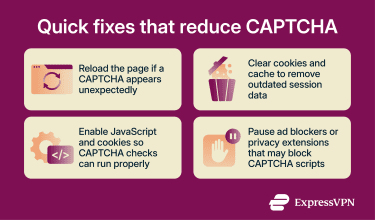
Reload the page and try again
Sometimes a CAPTCHA appears because a verification token has expired or a page request failed partway through loading. Refreshing the page and completing the action again can resolve this. If the challenge disappears after a reload, the trigger was likely a temporary error rather than a deeper problem.
Clear cookies and cache
Your browser stores small files called cookies along with cached page data as you browse. CAPTCHA systems use cookies to remember information about your visit, such as whether you recently completed a verification check.
If CAPTCHA prompts keep repeating on the same site, stored data from an earlier visit may no longer match the current session. This can happen if a verification token expires or if the CAPTCHA scripts loaded by the page are outdated or incomplete.
Clearing your browser’s cookies and cache removes that stored data and reloads the page resources from scratch. The site can then run the verification process again with a fresh session.
After you clear your cookies, the site may ask you to complete a CAPTCHA again the next time you visit, since the record of your previous verification has been removed. Once you complete the check again, prompts often return to normal.
Related: How to clear browser cache on any device
Enable JavaScript and cookies
Many CAPTCHA systems rely on JavaScript to analyze how you interact with a page and on cookies to remember that a verification check was completed. If either is disabled in your browser, the system can't verify you without showing a visible challenge.
In that case, the site may display a visible challenge every time you visit, or the verification widget may fail to load correctly. Check your browser settings to confirm that both JavaScript and cookies are enabled for the site you’re visiting.
Pause privacy tools temporarily
Ad blockers, tracker blockers, and script-blocking extensions can sometimes stop CAPTCHA from loading at all.
For example, reCAPTCHA’s verification scripts and widget are hosted on Google's servers and loaded from domains such as google.com, gstatic.com, and recaptcha.net. If your extensions block connections to any of these, the widget can't load, and you may see a blank space, an error, or a loading spinner that never finishes.
If this happens, try disabling your extensions on the specific site where the problem occurs. Most extensions let you add exceptions for individual sites, so you can keep your protections active everywhere else.
Related: Are Chrome extensions safe?
Browser best practices
Your browser can affect how CAPTCHA systems interpret your requests. The browser you use, how it’s configured, and which extensions are active all influence whether your activity looks like typical browsing or something that requires additional verification.
Use a mainstream, up-to-date browser
Most CAPTCHA systems are designed around the browsers people use most: Chrome, Firefox, Safari, and Edge. Older versions or less common browsers may behave differently, potentially leading to more frequent challenges. Keeping your browser updated also ensures it remains compatible with newer CAPTCHA implementations.
Tips for Chrome and Edge users
Signing into your Google account in Chrome can sometimes reduce how often reCAPTCHA challenges appear. Because reCAPTCHA is a Google service, a logged-in session can provide additional signals the system may use when evaluating a request.
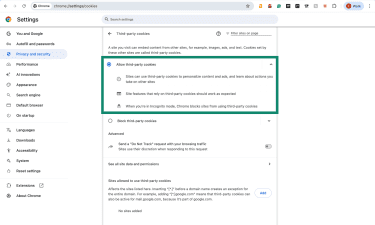
Chrome allows third-party cookies by default, but if you’ve changed this setting or are browsing in Incognito mode, reCAPTCHA may not function properly. To check:
- Open Settings.
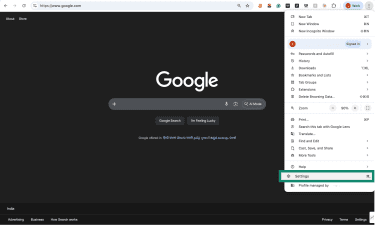
- Select Privacy and security, then Third-party cookies.
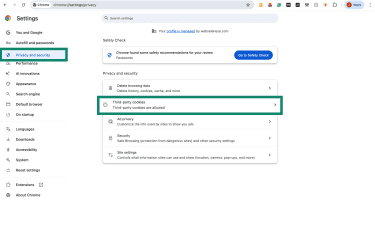
- Make sure Allow third-party cookies is selected, or add an exception for the site where CAPTCHAs aren't working.
Microsoft Edge uses the same browser engine as Chrome, so it behaves similarly with CAPTCHA systems. Edge includes built-in tracking prevention with three levels: Basic, Balanced, and Strict.
If you’re seeing repeated challenges in Edge and Tracking prevention is set to Strict, switching to Balanced may help.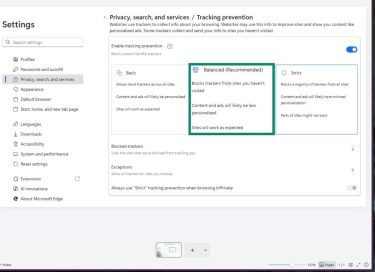
Tips for Firefox users
Firefox includes a built-in privacy feature called Enhanced Tracking Protection, which blocks certain trackers and cross-site cookies. It has three modes: Standard, Strict, and Custom. Standard is the default and generally works with CAPTCHA systems. Strict mode can block some scripts that CAPTCHA systems rely on, leading to repeated challenges or broken widgets.
If you’re using Strict mode and CAPTCHAs aren’t loading or keep repeating, switching to Standard may resolve the issue. To do that:
- Open Settings.
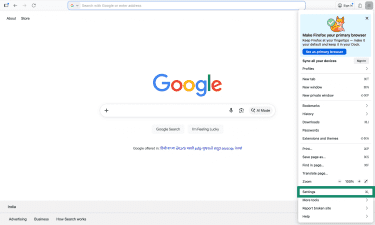
- Select Privacy & Security, then, under Enhanced Tracking Protection, switch from Strict to Standard.
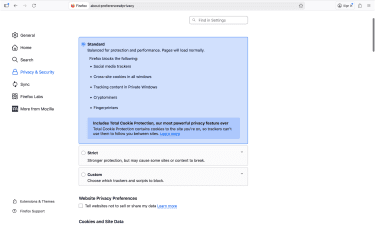
You can also add an exception for a specific site without changing your global setting. Click the shield icon in the address bar on the problem site and toggle Enhanced Tracking Protection off for that site only. You’ll see the shield icon when Firefox blocks trackers on a page.
Settings for Safari
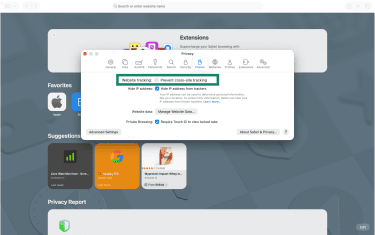
Safari includes a privacy feature called Intelligent Tracking Prevention (ITP). It limits how websites track users across different sites, which can reduce some of the signals CAPTCHA systems use to evaluate a browsing session.
If CAPTCHAs appear frequently on Safari, adjusting this setting may help:
- Open Safari > Settings.
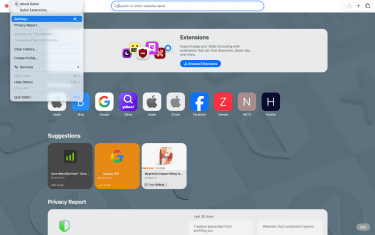
- Select Privacy and uncheck Prevent cross-site tracking to see if the issue resolves.
Remove extensions that trigger CAPTCHA
Some browser extensions change how your browser identifies itself to websites, block scripts from running, or inject code into pages. These changes can make your browser appear unusual to CAPTCHA systems, potentially triggering additional challenges.
If CAPTCHAs increased after installing a new extension, try disabling it to see if it’s the cause.
Be cautious with extensions from unknown developers. Malicious extensions can generate background traffic or alter browser behavior without you realizing it.
Avoid patterns that look automated
CAPTCHA systems also evaluate how requests arrive from your browser session. Certain browsing habits can resemble automated behavior even when they’re not.
- Slow down repetitive actions: Submitting many searches, requests, or form entries in quick succession can resemble automated traffic. Adding short pauses between actions helps keep requests within typical browsing patterns.
- Avoid rapid refreshes and tab switching: Opening many tabs to the same site or refreshing a page repeatedly within seconds can create a burst of requests from a single session. CAPTCHA systems may interpret this pattern as scraping.
- Avoid private (incognito) mode on sensitive sites: Private browsing starts each session without cookies, cached data, or stored logins. Every visit appears as a new session. On sites where CAPTCHAs appear frequently, using a standard browser with persistent cookies may reduce the frequency of challenges.
Account and trust signals
CAPTCHA systems also consider whether a browsing session appears to be associated with a known user or device.
Sign into trusted accounts
Signing into an account gives the website more context about the session. Instead of evaluating each request only by browsing behavior, the system can associate activity with an existing account that already has a history on the platform.
Many websites use login state as one of the signals that help distinguish regular users from automated traffic. When you’re signed in, the system may be less likely to require a CAPTCHA challenge for routine actions.
Keep a consistent device profile
CAPTCHA systems also look at technical characteristics of the device making the request. These characteristics are often referred to as a browser fingerprint. The term refers to a collection of details, such as your operating system, browser version, screen resolution, and installed fonts.
If those details change frequently, the system may treat each visit as coming from a different device. Switching browsers often, clearing all settings, or using tools that randomize browser fingerprints can trigger additional checks. Keeping the same browser and device configuration helps build a consistent profile over time.
Related: Best browsers for privacy
Confirm email or phone when needed
Some websites offer email or phone verification when automated-activity checks are triggered. Completing this step confirms that the account is linked to a real contact method.
Once an account has been verified, the site may rely on that confirmation when evaluating future activity. In some cases, this can reduce the need for repeated CAPTCHA challenges. That said, prompts can still appear depending on other factors such as IP reputation or browsing behavior.
VPN and network strategies
If the fixes above haven’t helped, adjusting your network or VPN connection can sometimes reduce the frequency of these challenges.
Switch VPN servers when CAPTCHAs spike
If CAPTCHAs appear frequently while connected to a VPN, switching to another server may help. Each server uses a different IP address, and websites evaluate those addresses separately.
If available, try selecting another server in the same country or region first. This keeps your browsing experience similar while assigning a different IP address to your connection.
Use a dedicated IP address
Most VPN services assign shared IP addresses, meaning multiple users connect through the same address. A dedicated IP address is assigned to a single user instead.
Because the address is used by only one account, websites see activity from a single source rather than from many users. Over time, this can reduce the likelihood of repeated CAPTCHA challenges, though reputation and behavior signals can still trigger them.
ExpressVPN offers a Dedicated IP option that assigns an IP address exclusively to your account while still providing the privacy benefits of a VPN. For users who encounter frequent CAPTCHA challenges on shared addresses, a dedicated IP can help reduce how often those challenges appear.
Avoid free VPNs and public proxies
Free VPN services and open proxy servers often rely on a smaller pool of IP addresses that are widely shared. When large numbers of users connect through the same addresses, those IPs can attract more automated traffic checks from websites.
Paid VPN providers generally operate larger server networks and distribute traffic across more IP addresses. This can reduce the frequency with which a single address triggers repeated verification requests.
Related: Fix Google search not working with a VPN
When CAPTCHAs won't go away
Sometimes CAPTCHA prompts continue to appear even after adjusting your browser or network settings. In those cases, the problem may be tied to the current session or to how the site is handling verification requests.
Fix CAPTCHA loops and repeated challenges
A CAPTCHA loop occurs when solving one challenge immediately triggers another. This means the site still isn’t confident about the session even after a challenge is completed.
If you encounter a loop, try the following:
- Switch to a different network or VPN server and reload the page.
- Clear your browser’s cookies and cache, then open the site again.
- Sign in to your account on the affected site before retrying.
- Disable browser extensions and test the page in a standard browsing window.
If the issue persists across multiple networks and browsers, it may be related to the website rather than your device or connection.
What to do if reCAPTCHA won't load
If the verification widget shows a blank space, an error message, or a loading spinner that never finishes, the page may not be able to load the resources required for the challenge.
Check that JavaScript is enabled in your browser, then temporarily disable any content-blocking extensions. If the problem persists, try opening the page in another browser or on another network to rule out local restrictions.
Legal and ethical considerations
CAPTCHA systems are designed to protect websites from automated abuse. They help prevent activities such as spam submissions, credential-stuffing attacks, fraudulent account creation, and automated scraping.
Many websites treat CAPTCHA as a security control. Their Terms of Service may prohibit using automated tools to bypass verification systems or access services in ways that mimic human behavior. Attempts to defeat these protections (such as using CAPTCHA-solving services or browser automation) can result in blocked access, suspended accounts, or other restrictions. In some jurisdictions, bypassing technical access controls may also have legal implications.
The methods described in this article focus on normal browsing adjustments rather than defeating CAPTCHA systems. They help websites better interpret legitimate traffic and may reduce unnecessary prompts without bypassing or disabling verification mechanisms.
FAQ: Common questions about reducing CAPTCHA prompts
How do I stop being asked for CAPTCHA?
Why do I keep getting CAPTCHAs even though I'm human?
What actions can trigger a CAPTCHA?
How do I avoid the “I am not a robot” CAPTCHA?
How do I get rid of reCAPTCHA verification?
Can CAPTCHAs be completely avoided when using VPNs?
What is the purpose of CAPTCHA?
Is it legal to bypass CAPTCHA?
Take the first step to protect yourself online. Try ExpressVPN risk-free.
Get ExpressVPN